
Adding a Logo to Copy Packs
You can customize Pagewheel’s Copy Packs by including your own logo. This adds a professional touch to your products.
If you provide Copy Packs as a service, you can include your client’s logo for a more personalized experience.
Accessing the Logo Upload Feature
When you open the Copy Packs screen, the copy pack generation interface will appear.
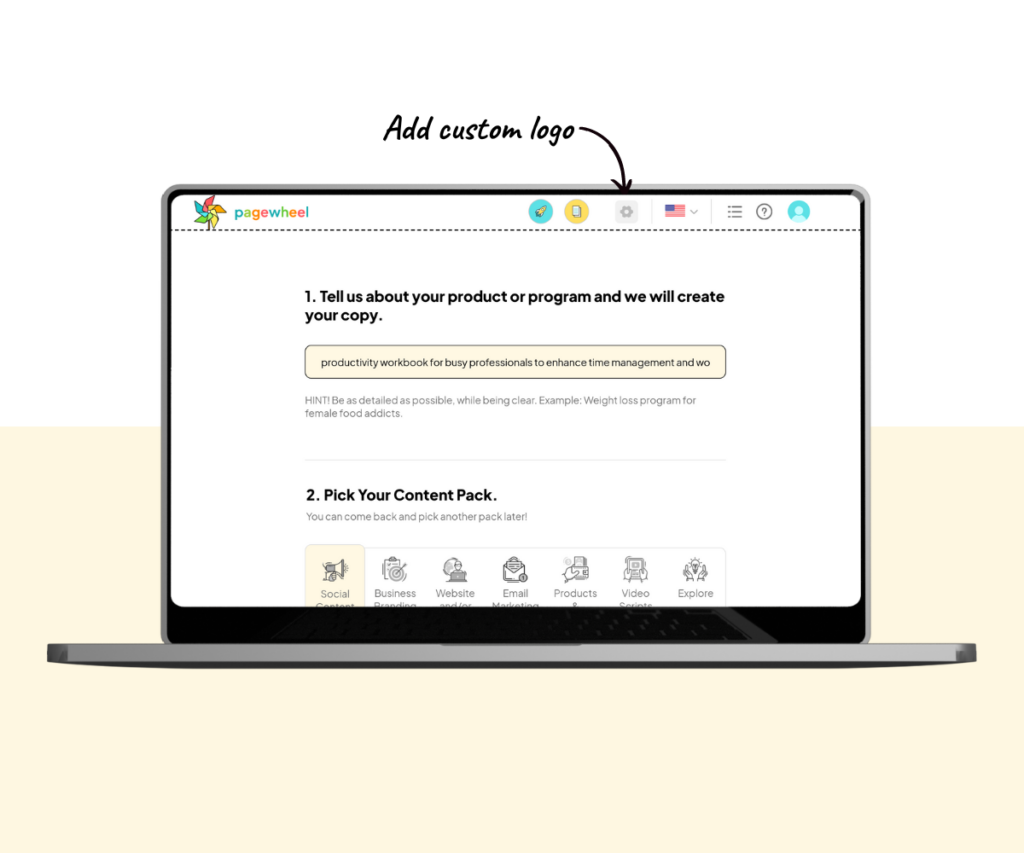
You’ll notice a gear icon in the top bar.
Hover over this icon, and it will display “Custom Logo Settings.”
Uploading the Logo
To upload your logo, click the gear icon to open the logo settings box.
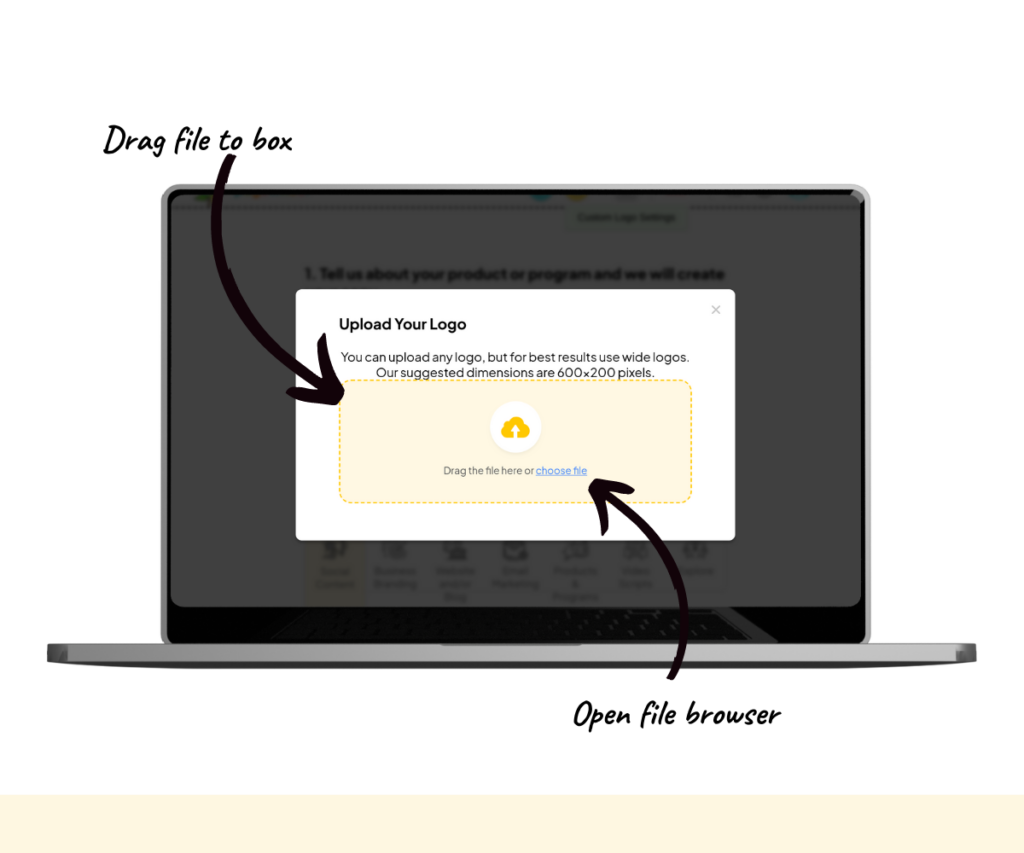
You can either drag a file into the yellow box or click “choose file” to open your file browser.
After selecting your image, wait for the upload to complete.
The recommended dimensions for the logo are 600 x 200 pixels.
Downloading the PDF
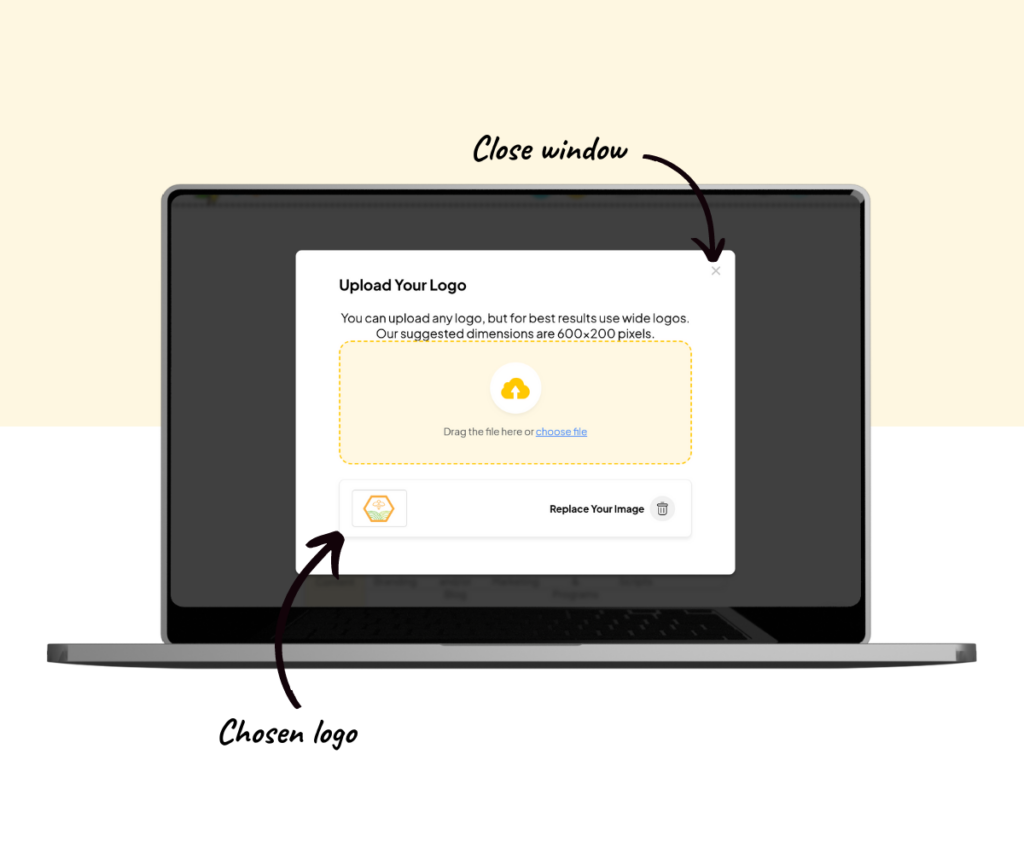
Once you’ve uploaded your logo, it will appear below the upload box.
Simply close the window to go back to the Copy Packs generation screen.
Proceed with creating your Copy Packs as usual. If you’re unfamiliar with the process, refer to the Step-by-Step Guide to Using the Copy Pack Generator for detailed instructions.
Please note, the logo won’t appear while you preview the content. It is only visible on the downloaded PDFs.
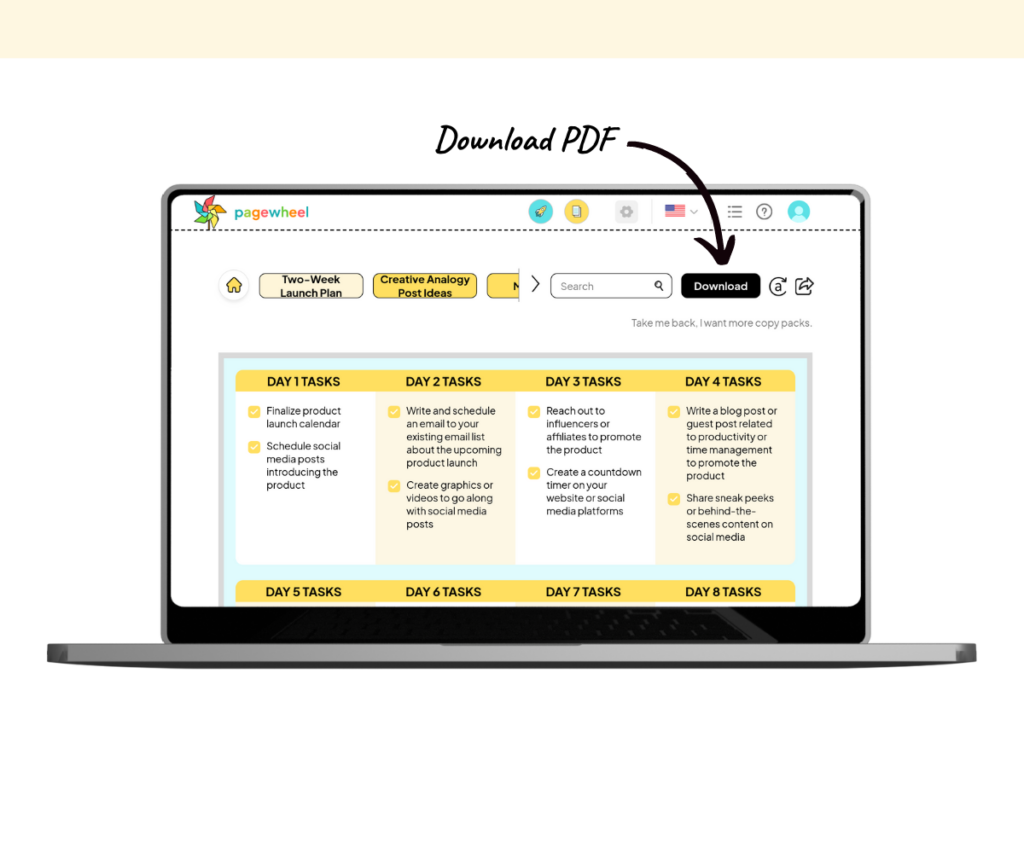
Once ready, click the download button to save the PDF.
Viewing the Logo in the PDF
After downloading the PDF, open the file.
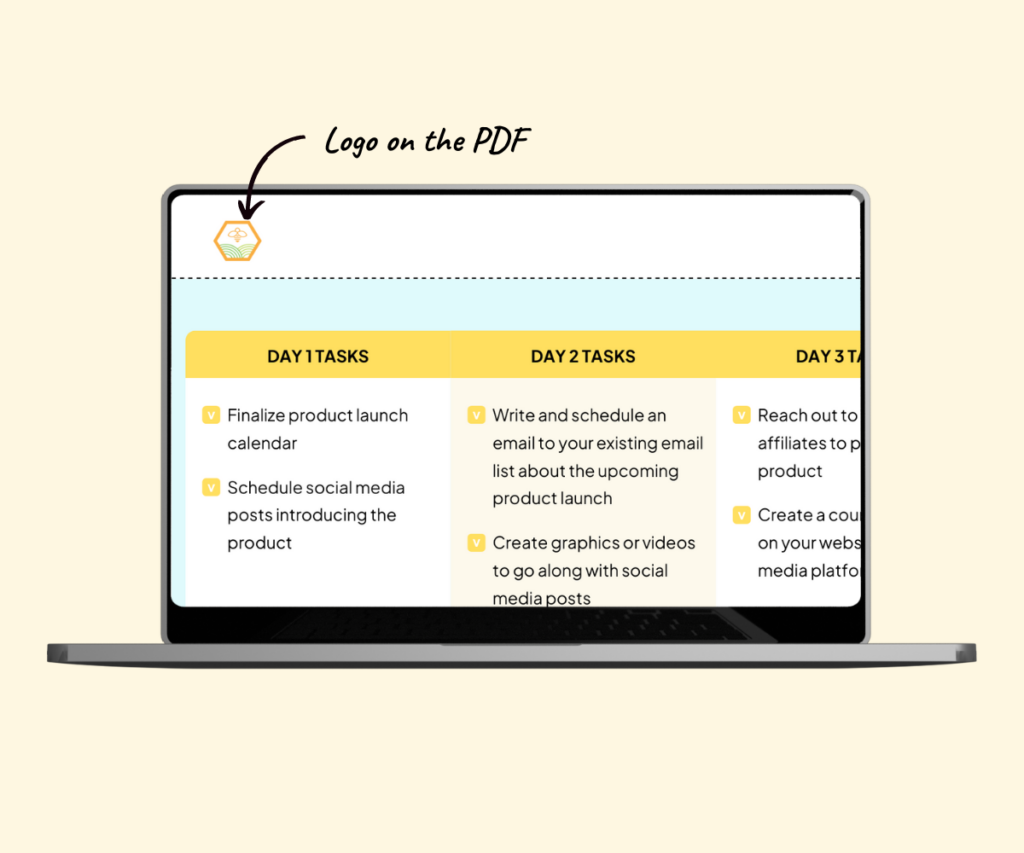
You’ll see your logo displayed in the top-left corner of each page.
Removing a Logo
If you decide not to use a logo, you can remove it with a few clicks.
Open the custom logo settings window by pressing the gear icon.
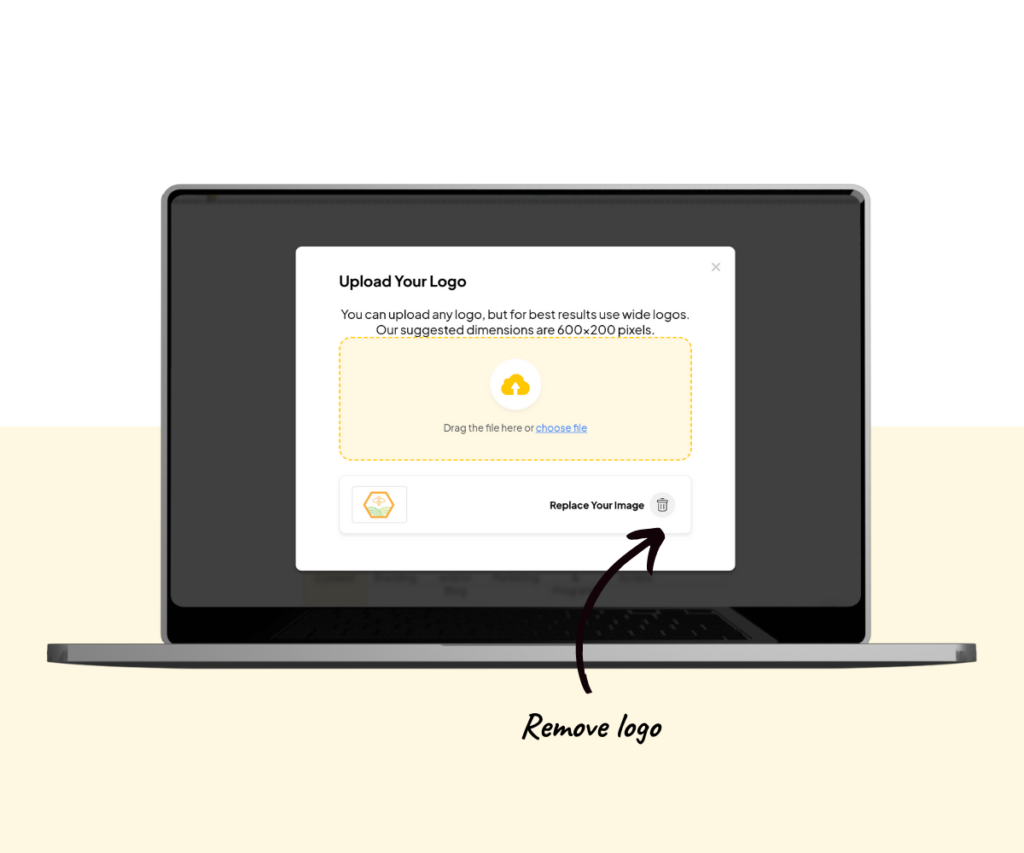
Then, click the trash bin icon to delete the logo.
You’ll need to download the PDFs again to get the versions without the logo.
Replacing a Logo
If you want to replace a logo, press the gear icon to open the custom logo settings window.
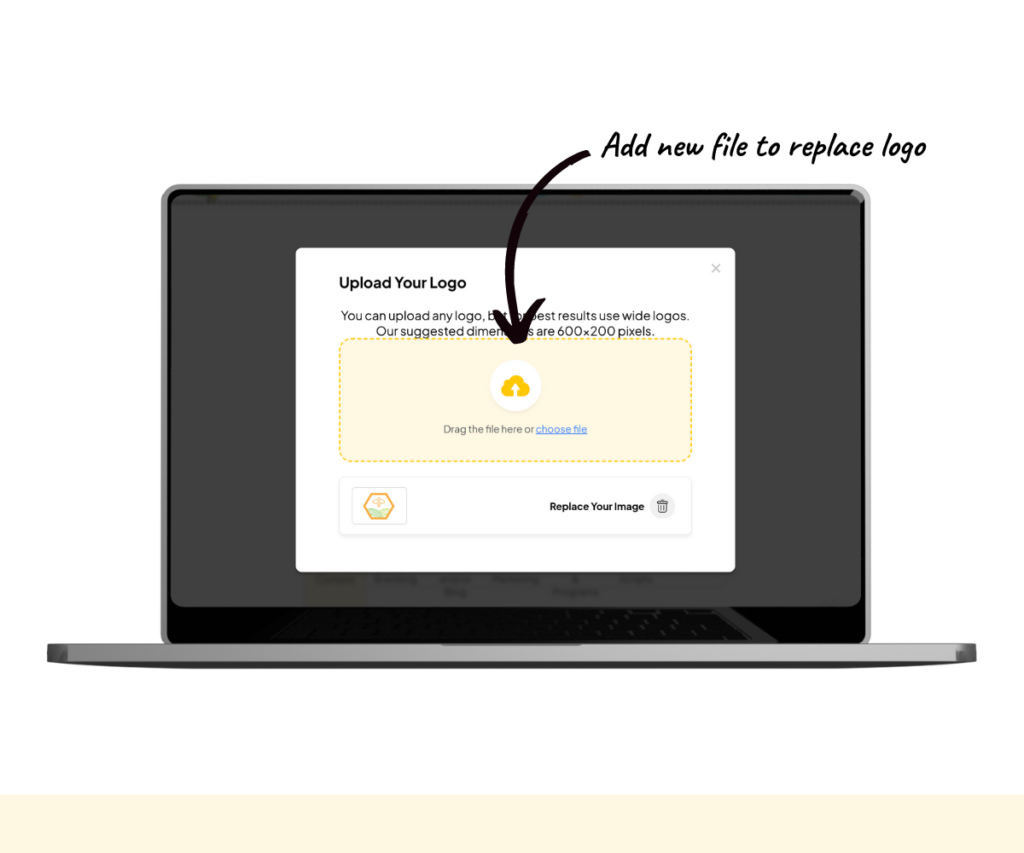
Drag a file to the yellow box, or click the “choose file” text to open your file browser.
Select the new image, and it will upload shortly, replacing the previous logo.
Download the PDFs again to get the versions with the updated logo.
Additional Resources
- Creating Marketing Copy with the Copy Pack Generator
- How to Upload an Image to Your Product or Website
- How to Swap an Image on Your Product or Website
- How to Change Your Profile Picture
- How to Rotate Images
- How to Crop Images
- Pagewheel User Guide
- Become a Referral Partner – join our Affiliate Program!