
How to Duplicate a Digital Product

It’s easy to duplicate a digital product in Pagewheel. After making a copy of a product, you can then rename it to fit your needs.
A graphic with “Duplicate a Digital Product” text. Underneath is a simple stylized graphic depicting a page being duplicated.

Accessing the Product

To find the digital product you want to duplicate, you can use the “My Product Library” screen.

This is accessed via the sidebar. Click the page-with-heart icon, or the ‘Products’ text.
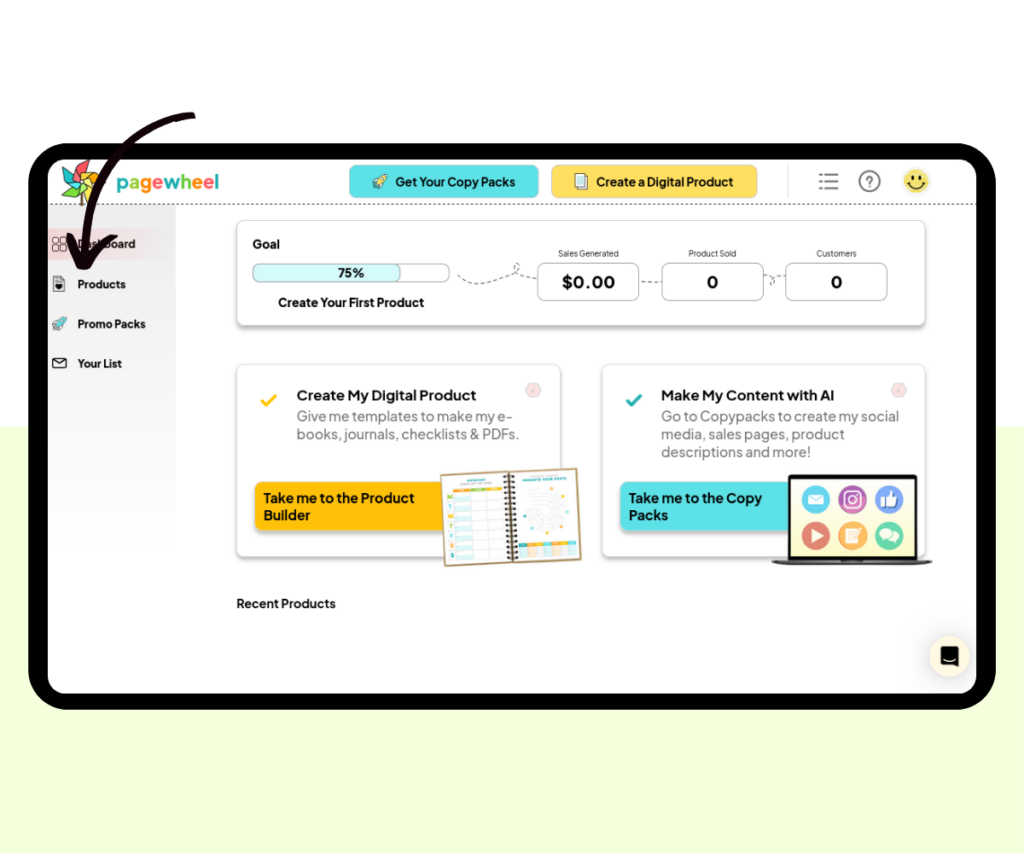
A screenshot showing where to click to open the “My Product Library” screen.
Click ‘Products’ to access your digital product library

You can also easily view recently created products on your dashboard. 

Go to your dashboard and scroll down to see your recent products. 
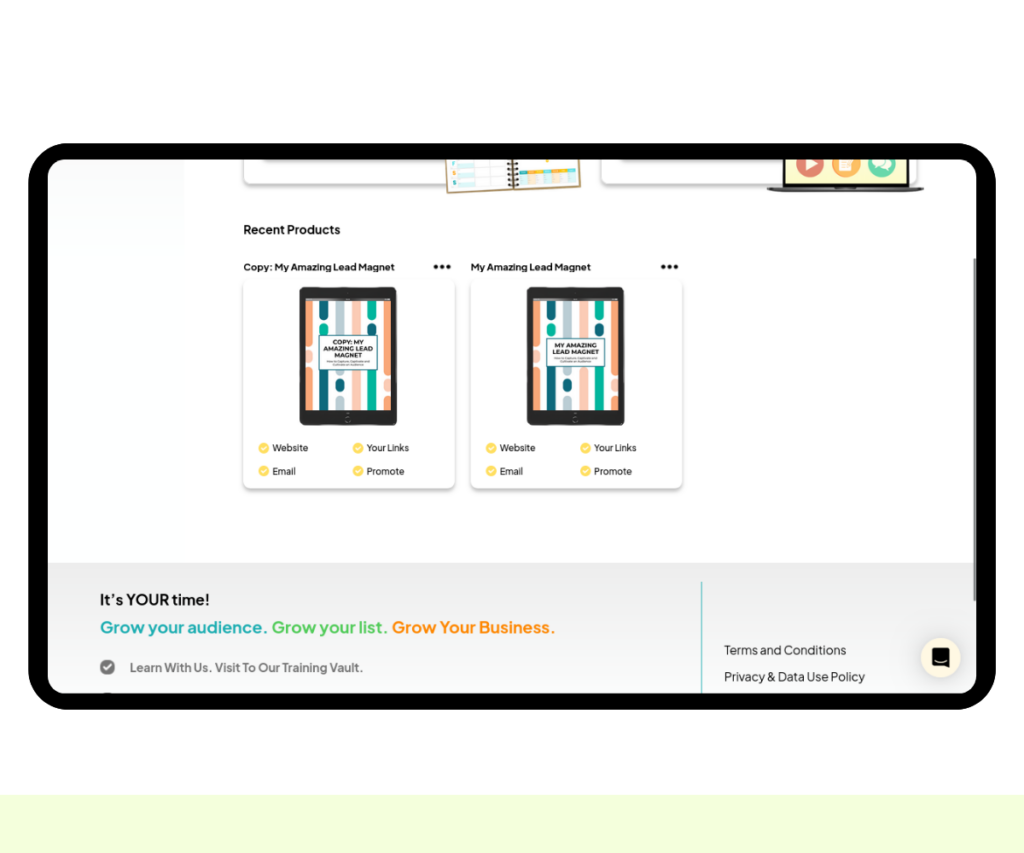
A screenshot of the “My Product Library” screen.
Scroll down to see recent products on the dashboard

The Product Library

The product library is used to find your digital products.
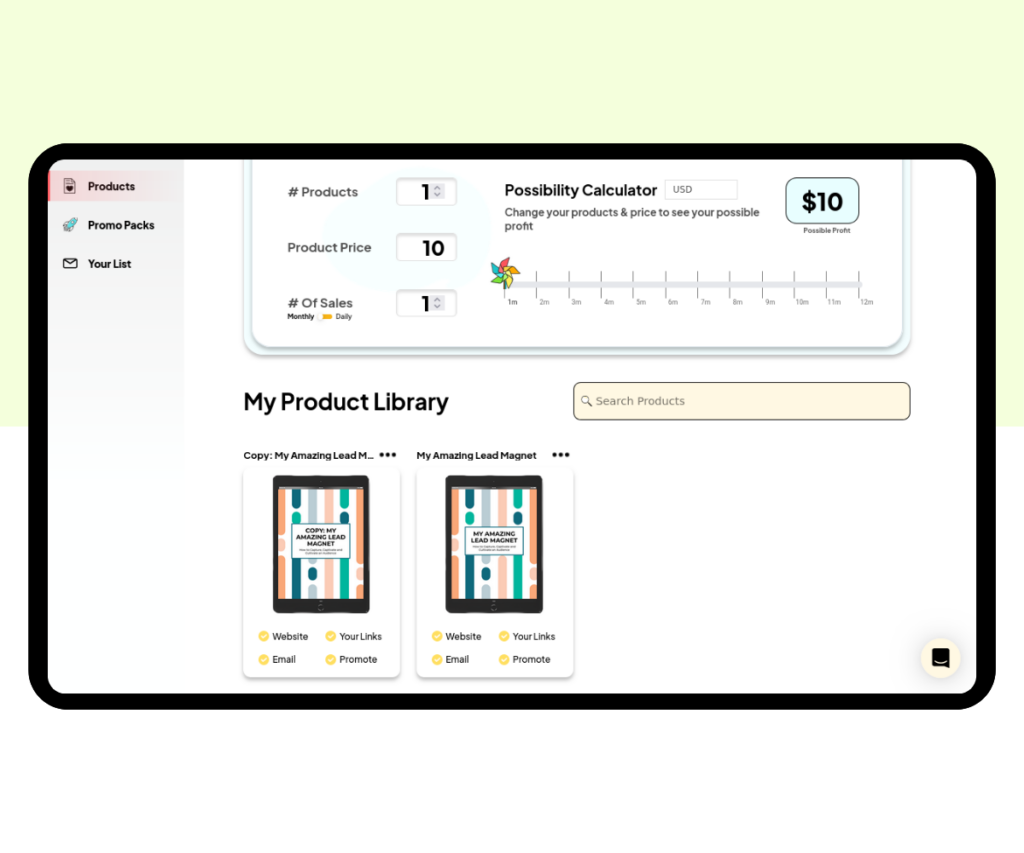
A screenshot of the “Recent Products” section on the dashboard.
The “My Product Library” screen

Click the “Show Me More” button if you cannot see the product you’re looking for.

All your digital products will then be displayed. 

Look through, or search for the product you want to duplicate with the search bar. 
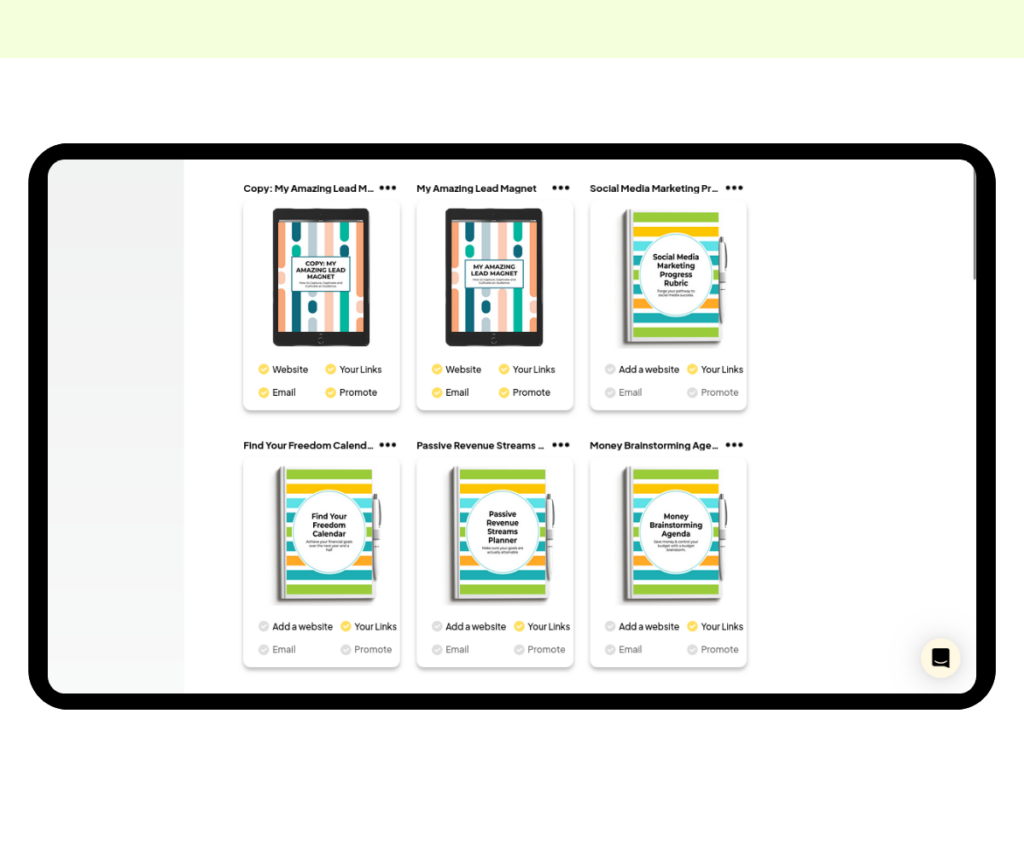
A screenshot of the product library after clicking the “Show Me More” button.
All of your digital products will be displayed

For more information, see How to Find a Product.

Duplicating the Product

On the product you want to duplicate, look for the three small dots in the top-right corner.

Click these dots to access the product menu.
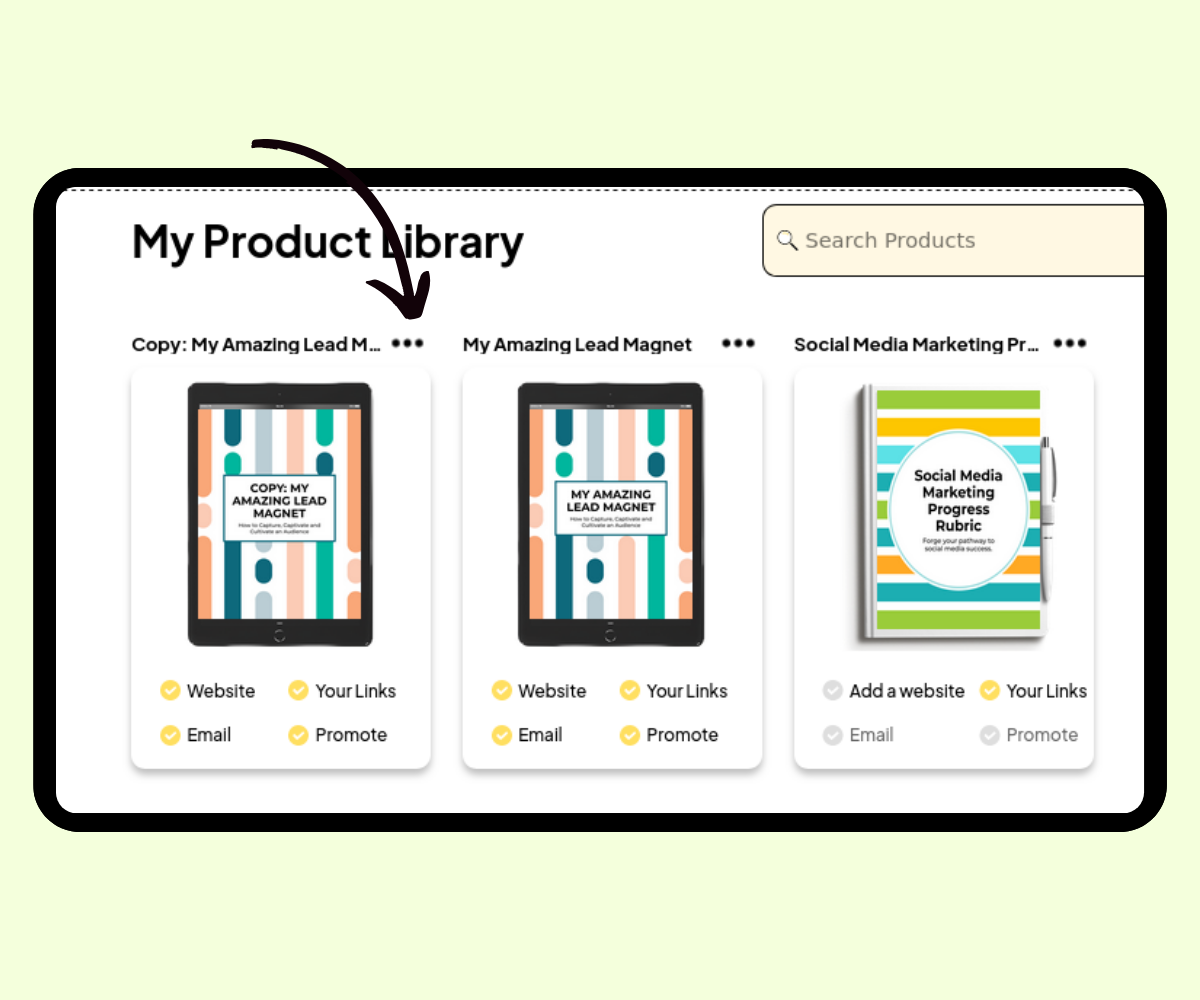
A screenshot showing where to click to open the product menu.
Click the three dots in the top-right corner

A menu of four icons will then appear. 

Click the duplicate icon (two sheets of paper) to duplicate the product.
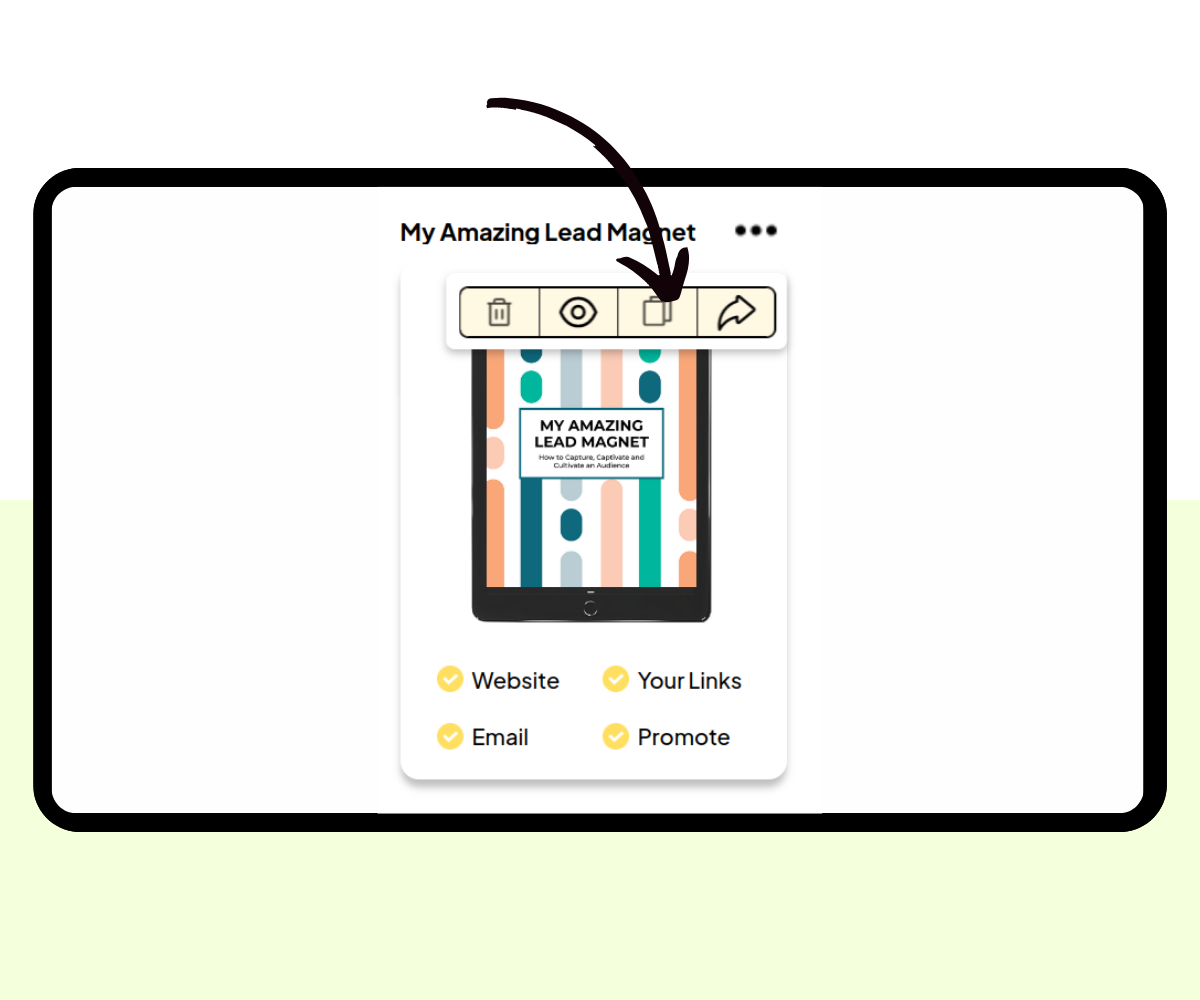
A screenshot showing where to click to duplicate a product.
Click the duplicate icon to make a copy of the product

A duplicate will then be created.

This will be named the same as the original product, with “Copy: ” appended to the front.  
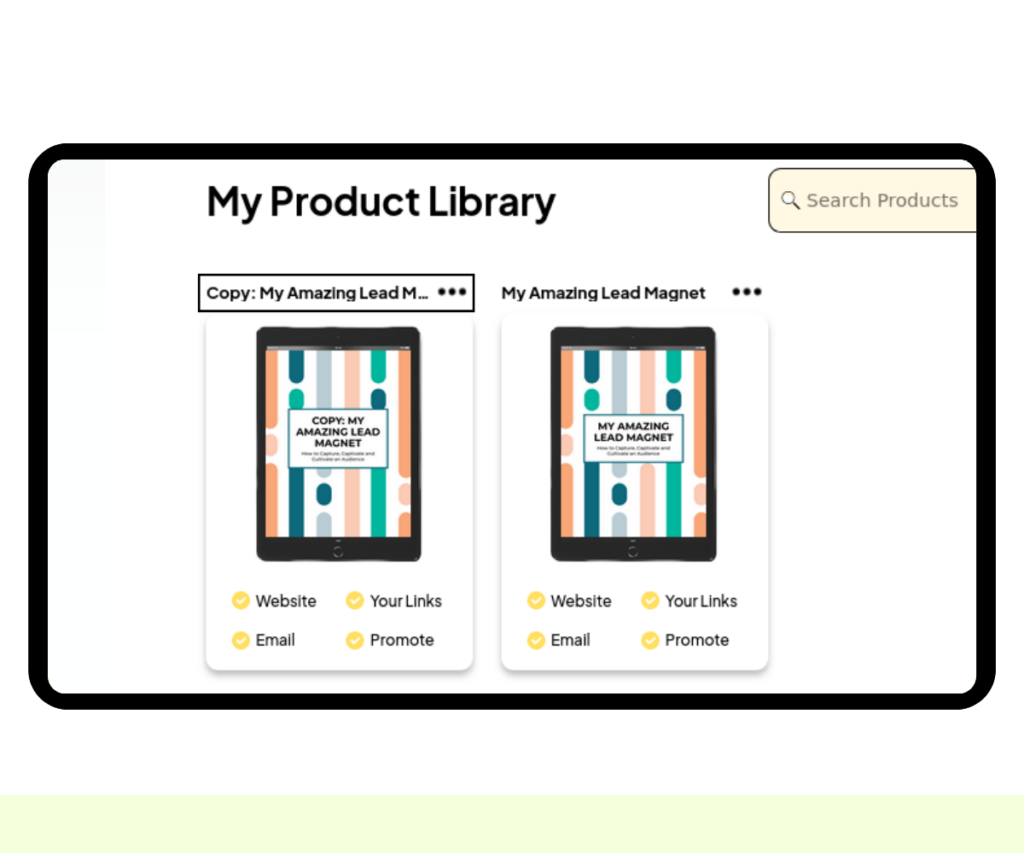
A screenshot of the duplicate product.
The duplicate product with “Copy: ” appended to the name

Renaming the Duplicate Product

To rename the duplicate product, you need to open it in the product editor. 

Click the three small dots in the top-right corner of the product to access the product menu. 

Then click the eye icon to open the product editor. 
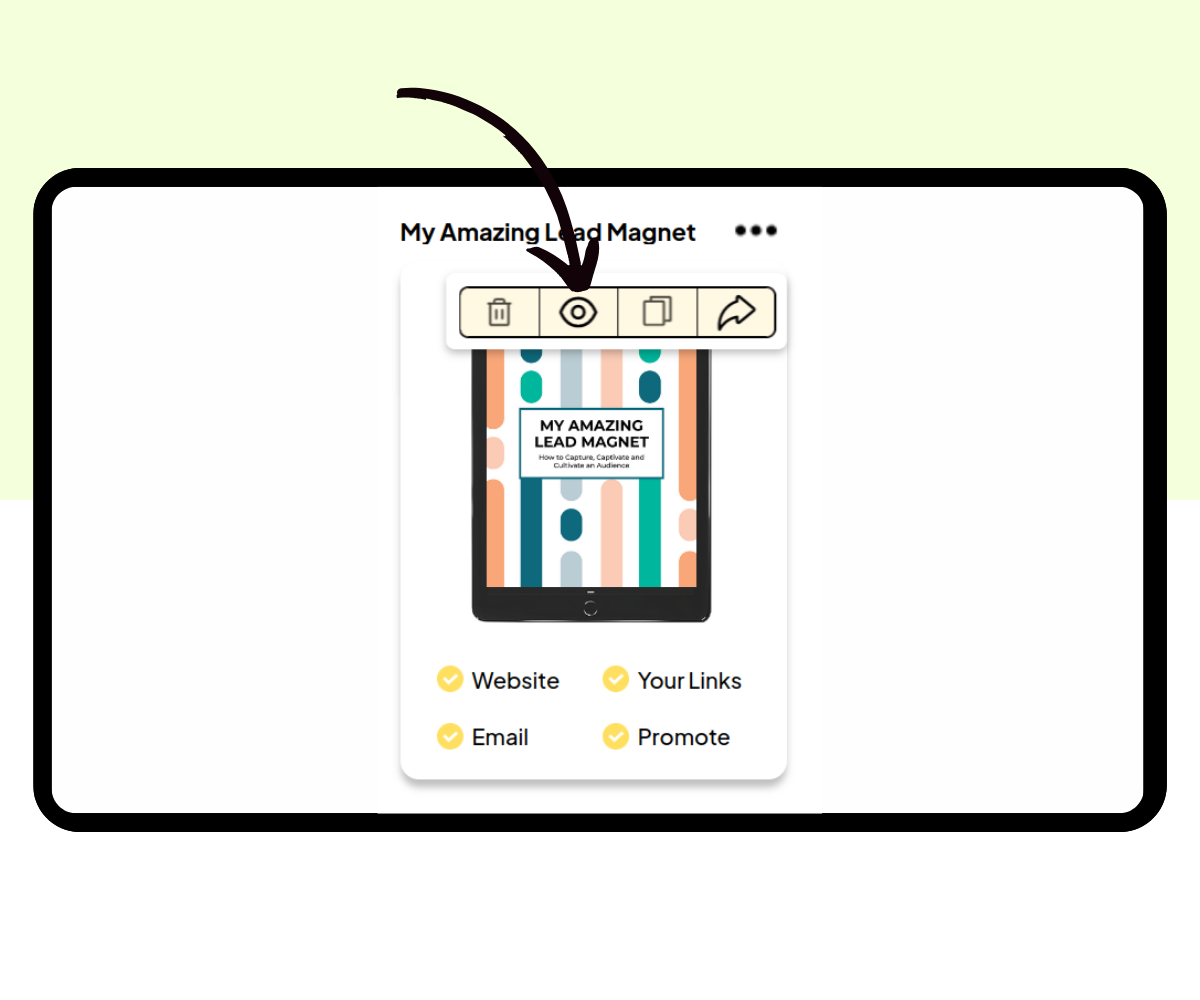
A screenshot showing where to click to open the product editor screen.
Click the eye icon to open the product editor

Editing the Product

The Product Editor screen allows you to make changes to your product.

To rename the product, you need to go to the second screen.

Click the “Looks GREAT!! Next” button to get to the next screen. 
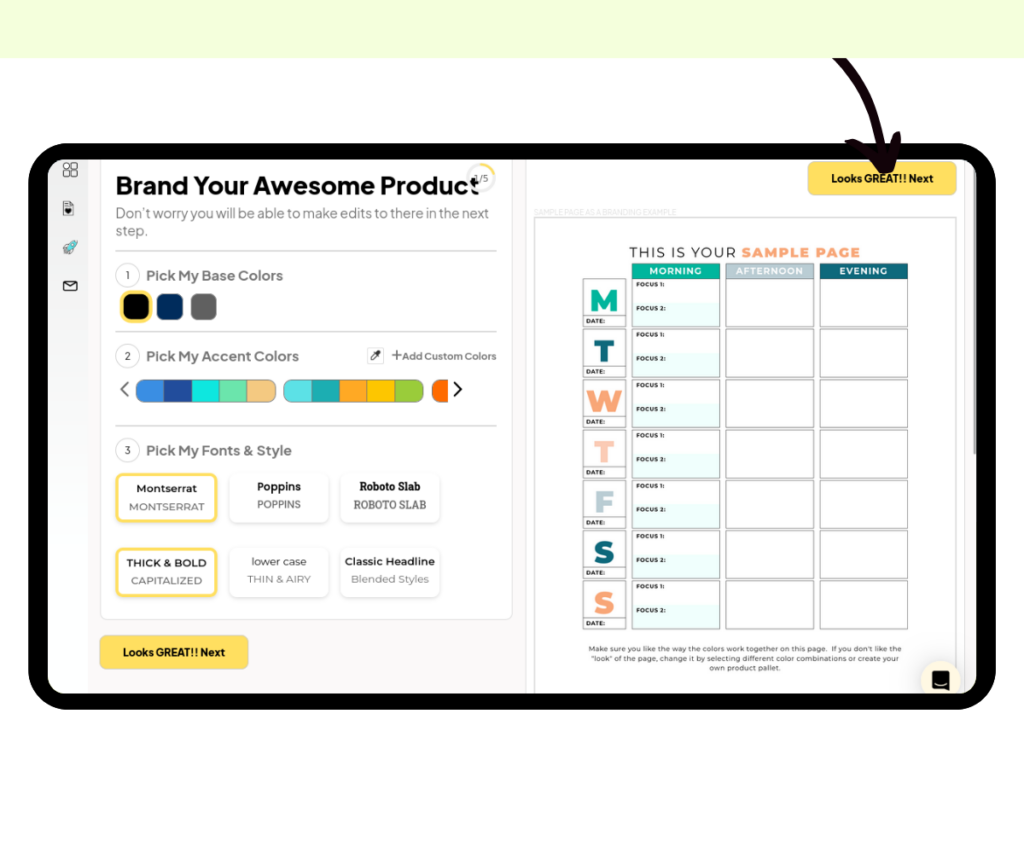
A screenshot showing where to click to get to the next screen.
Click “Looks GREAT!! Next” to get to the next screen

It’s here where you can rename your product. 

Fill in your new name in the title box.
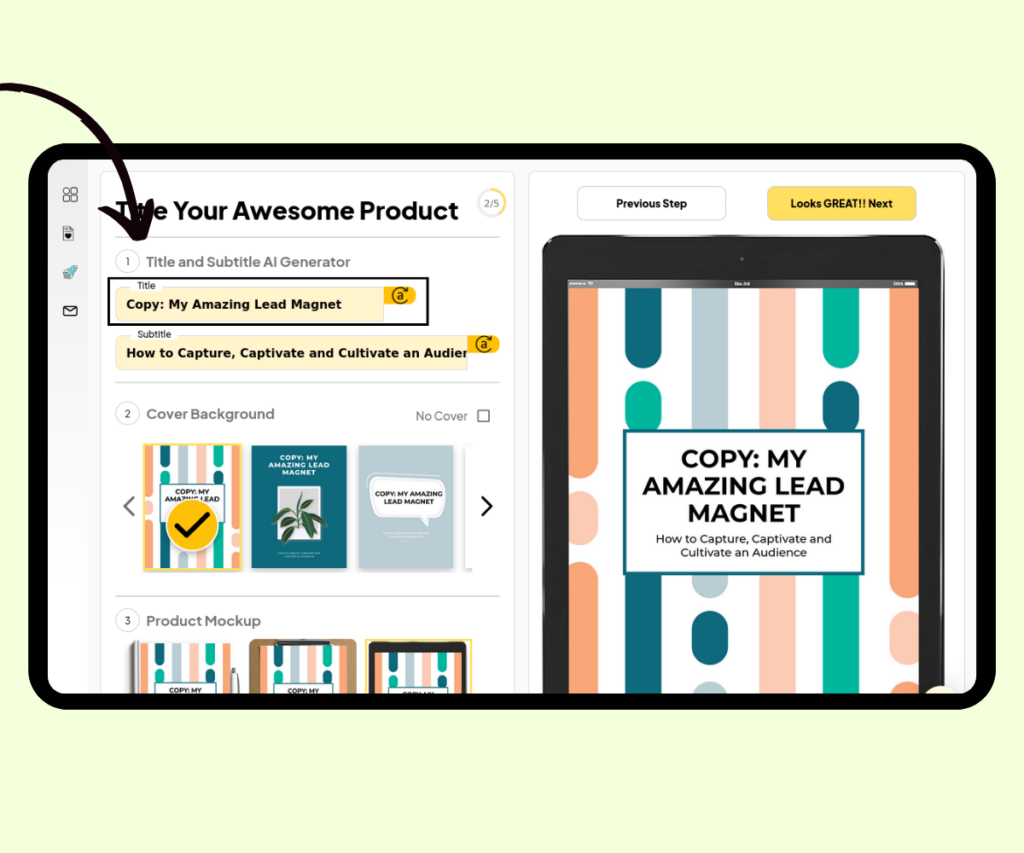
A screenshot showing where to enter the name of the product.
Fill in the new name in the title box

Continue by clicking the “Looks GREAT!! Next” buttons to save your changes.

For more information, see How to Edit a Product.

Additional Resources

Similar Posts

  • How to Create Email Sequences – in Minutes

    You have heard “business experts” talk about the importance of having people on your email list, and while that is TRUE. Your list is ONLY powerful if you are mailing to your list regularly. According to BizGenius 60% of all businesses only email their potential customers 2-5 times a month. That is NOT ENOUGH! BUT!!…

  • How to Find the Links to Your Digital Product & Website

    With Pagewheel, it’s straightforward to find the links to your digital product and website. Finding Your Digital Products Pagewheel automatically creates links for each of your digital products. You can then use these links to download or share the products. You’ll find your digital products listed on the “My Product Library” screen. This can be…

  • How to Become a Pagewheel Affiliate

    You can earn recurring commissions on referrals sent to Pagewheel. To manage your affiliate account, simply log in to the affiliate dashboard. From there, you can track your referrals, monitor earnings, and view payouts all in one place. Accessing Affiliate Link Sharing Settings To join the Pagewheel affiliate program, you first need to sign up…

  • Pagewheel Basics

    Welcome to an overview of all the basics you need to know when it comes to working with Pagewheel! Our mission is to help you grow your audience – and your business – fast. Let’s get started! Stuck? Not sure where to start? We’ve got you covered with easy-to-follow tutorials every step of the way….

  • How to Download an Invoice on Pagewheel

    You can download an invoice on Pagewheel by going to the account settings. Accessing Account Settings You can access your account settings by clicking your avatar (account settings icon) in the top right corner.  You’ll notice the “Account Settings” text as you hover over the avatar. Account Settings Overview Here you can update various items…

Leave a Reply

Your email address will not be published. Required fields are marked *