How to Reset or Change Your Pagewheel Password
You can reset and change your Pagewheel password in several ways.
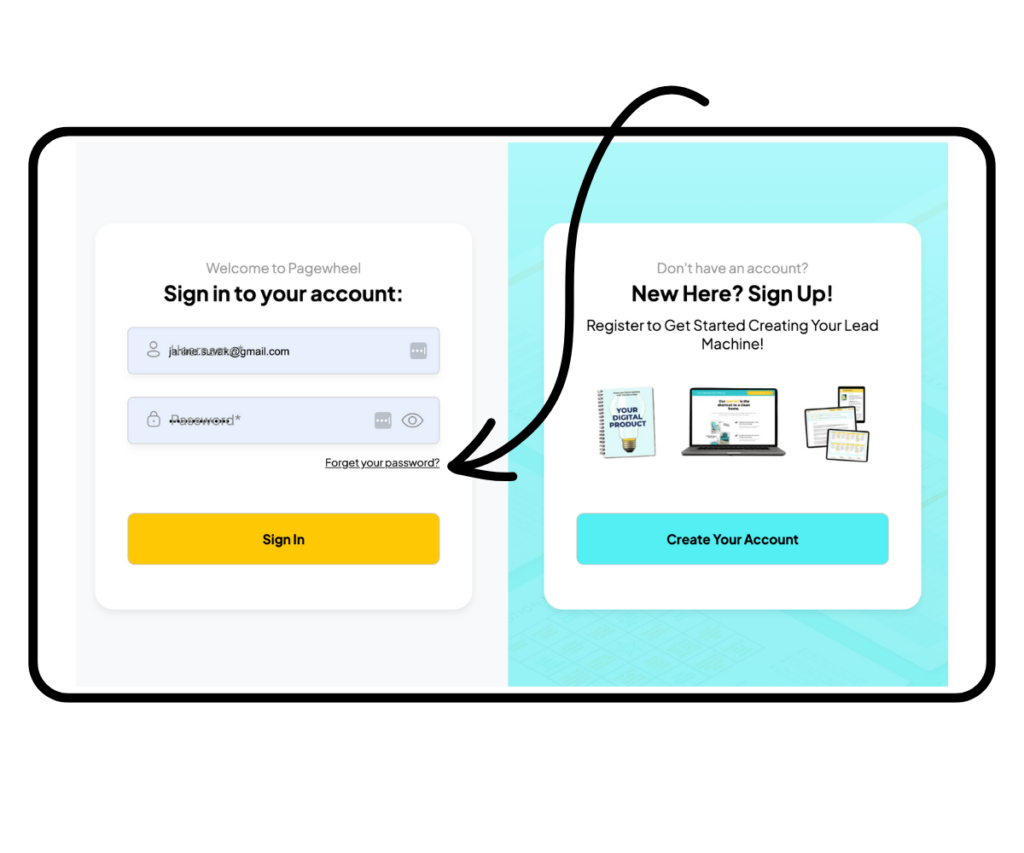
If you are having issues logging into Pagewheel and it isn’t recognizing your password, the best thing to do is to reset your password. You will find the ‘Forget your password?’ link just below the Username and Password fields on the login screen:
Check your email for a link to reset your password.
If you see a warning that your account does not exist, please contact our customer service through the live chat on the Pagewheel.com website or by emailing hello@pagewheel.com.
Changing Your Password from the Pagewheel Dashboard
You can also change your password or reset it from inside your Pagewheel account. Click on your avatar in the upper right corner…
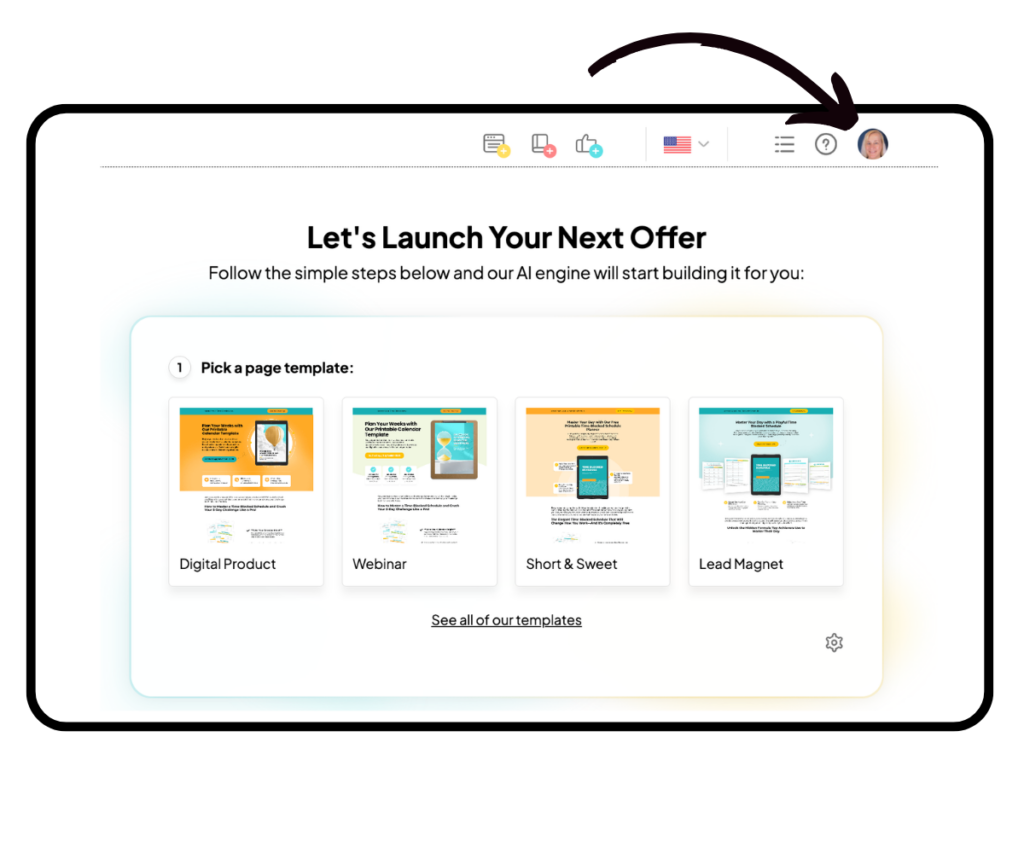
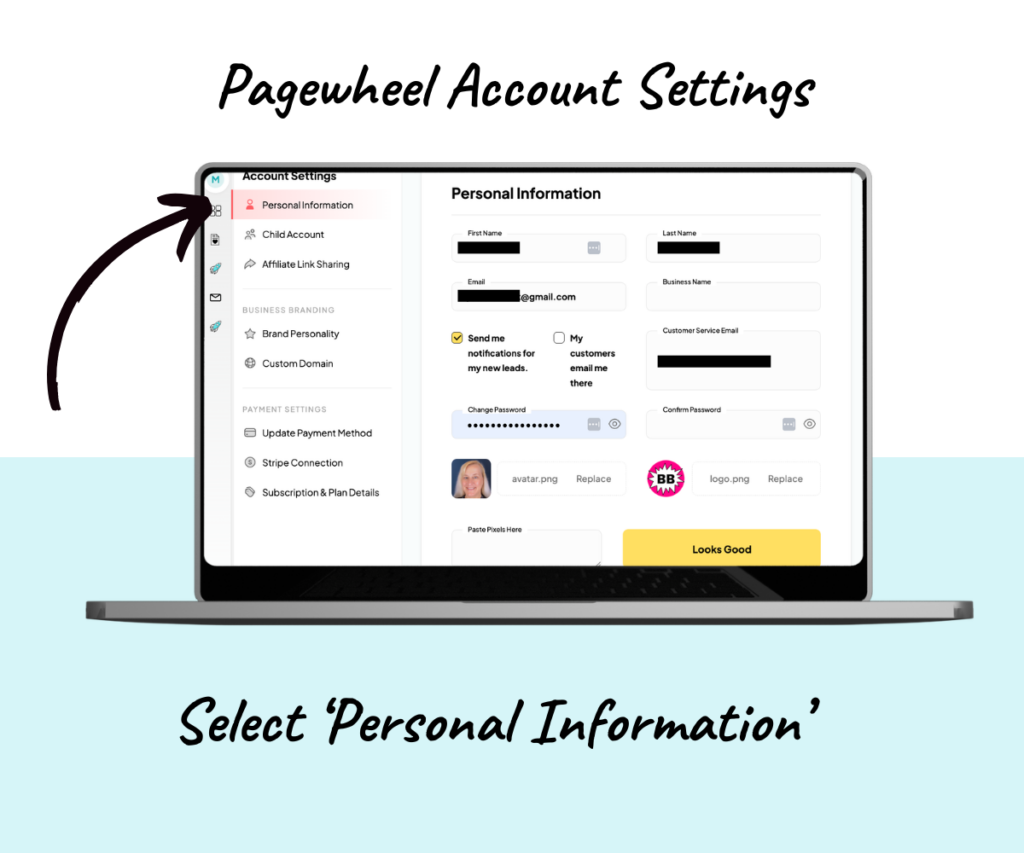
…and choose the “Personal Information” selection.
Use the change and confirm password boxes to make it happen.
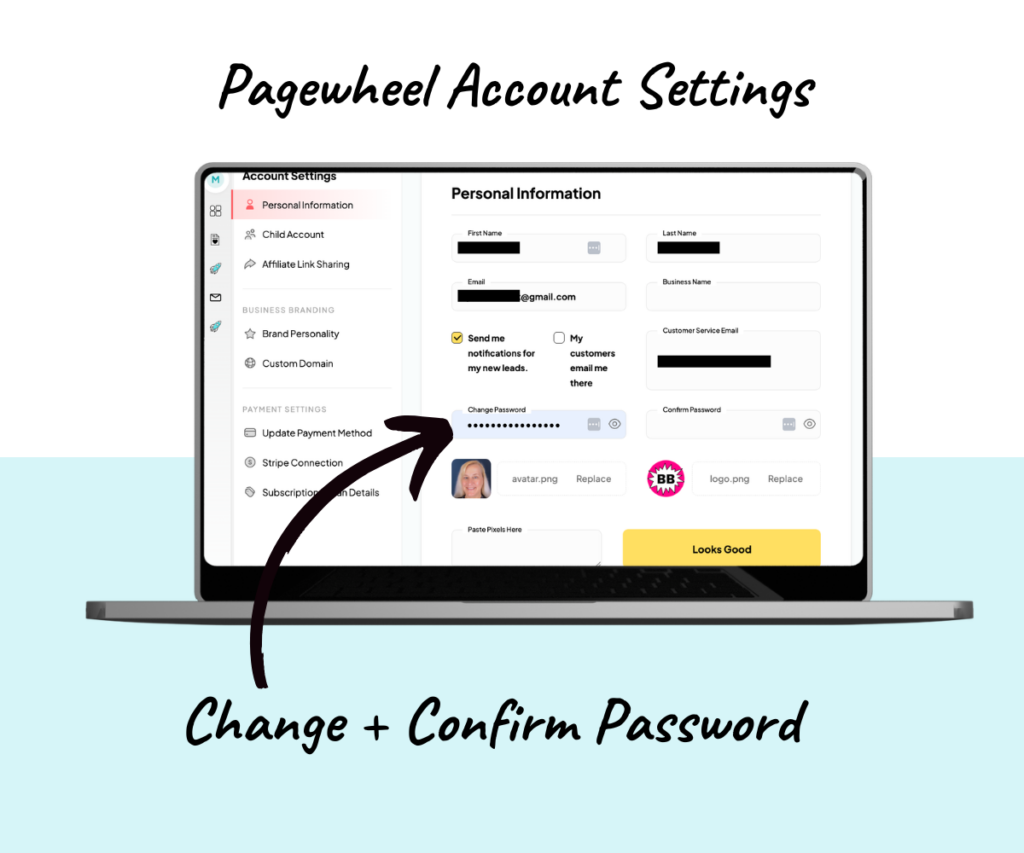
Click “Looks Good!” to save your new password, and you’re ready to go!